What the visual bot flow builder does
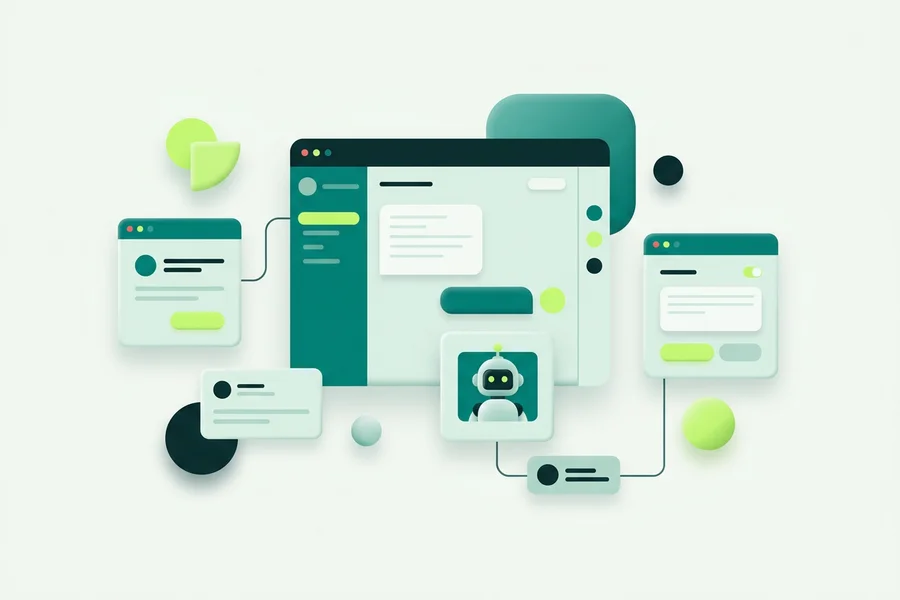
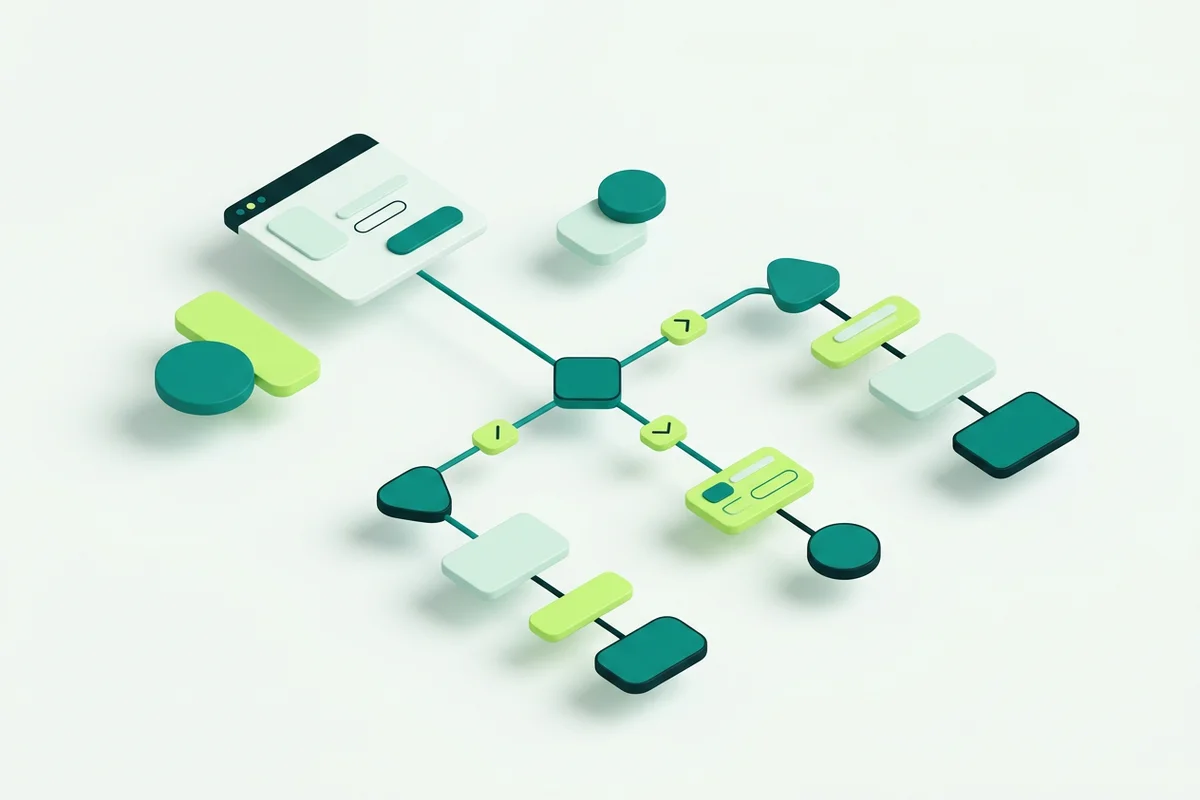
Most website chat starts life as a single greeting and never grows past it. The visual bot flow builder is the part of onmsg that turns that greeting into an actual conversation: a canvas where you drag step blocks, connect them, and decide what happens at every fork. You are not writing rules in a config file or briefing a developer. You are drawing the path a visitor walks.
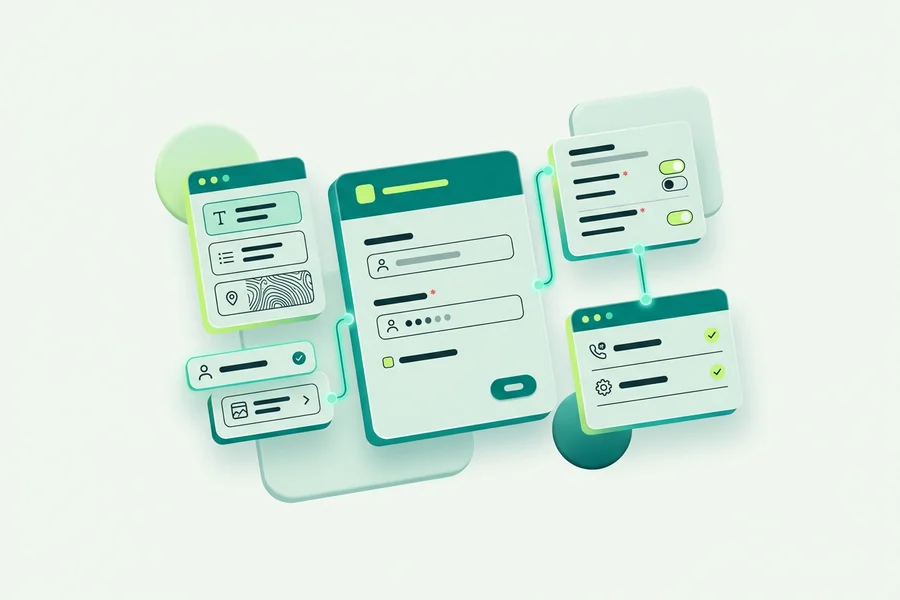
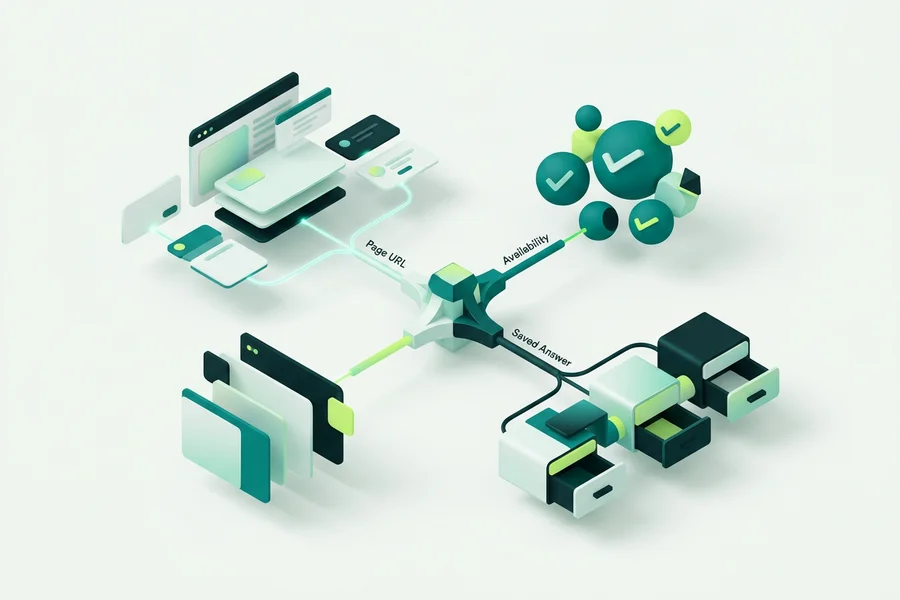
The canvas holds eleven step types. Some of them speak, Message shows information and continues, Image or video displays media from an upload or a link, Pause inserts a short typing delay so a reply does not land like a wall. Some of them listen, Question collects a free-text answer into a variable, One field collects a single value such as an email address, phone number or quantity, and Form collects several fields together. One of them thinks: the AI Agent step runs a multi-turn AI conversation with its own grounding and handoff configuration. And three of them decide: By answer branches on a saved variable, By availability chooses between online and offline paths, and By page branches on the visitor’s URL.
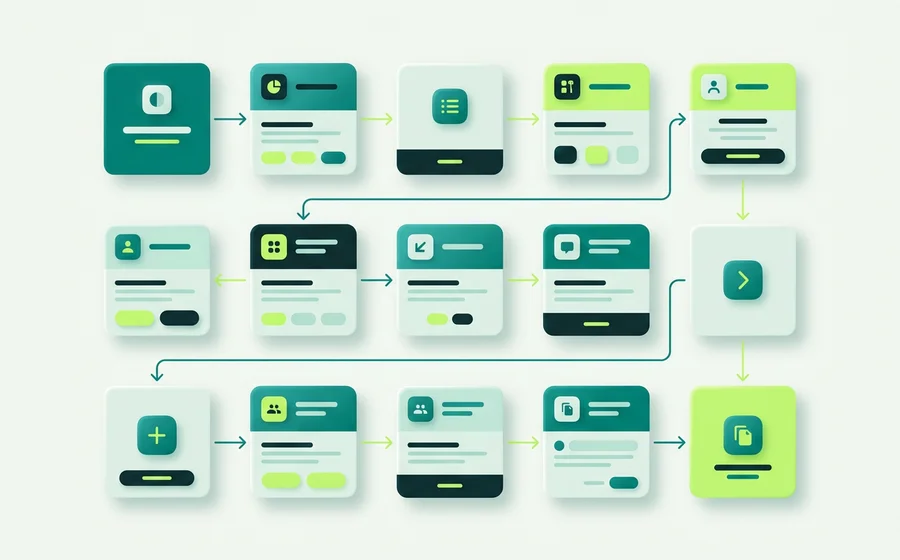
That combination is what separates a flow from a script. A script runs the same way for everyone. A flow notices that this visitor is on the pricing page, that it is 9pm, and that they already told you they are an existing customer, then behaves accordingly.
Common problems this solves
“Every visitor gets the same generic greeting.” A single opening message has to serve someone comparing prices and someone chasing an existing order. By page branching lets each of them start somewhere sensible, and Choices lets them self-select within a couple of taps.
“Enquiries arrive with half the information.” A bare contact form gets you a name and a sentence. A Form step with required fields, input types and configurable validation gets you the address, the budget range or the model number too, before anyone on your team spends time asking.
“After-hours messages disappear.” Set business hours and after-hours behaviour on the widget, then branch with By availability so the offline path collects details as an offline message rather than promising an instant reply nobody is there to give.
“Changing the bot means booking developer time.” The person who notices a confusing question is usually the person answering it. On a visual canvas they can rewrite the step and republish the flow themselves.
How a flow gets built
A first flow usually takes four moves. Start with a Message step that greets the visitor in your own voice. Add a Choices step listing the two to four things people actually come to you for, which branches the conversation immediately. On each branch, add either a Form step to collect what your team needs, or an AI Agent step pointed at your knowledge base to answer questions from your own content. Finish with an escalation so the conversation reaches a person, with everything collected so far attached.
From there you refine. Add a By page branch when you notice pricing-page visitors asking different questions. Add a By answer branch when one enquiry type needs a follow-up question. Add a Pause before a long message so it reads like a reply rather than a broadcast. Each change is a step on the canvas, not a release.
Where the flow builder connects
The flow builder is one part of a larger loop. The AI Agent step draws on the Grounded AI Agent & Knowledge Base, which decides how tightly answers stick to the knowledge you supplied. The escalation path drops the conversation into the Shared Team Inbox, where a teammate picks it up with the history intact. And the whole conversation is presented inside the Website Chat & Widget Customization layer, which controls how it looks and when it appears.
If you want the concepts before the mechanics, start with what a no-code chatbot flow builder is, then walk through building a greeting-to-handoff flow step by step.